
This article was created with the AI assistant Claude and published by Peter Hoenig.
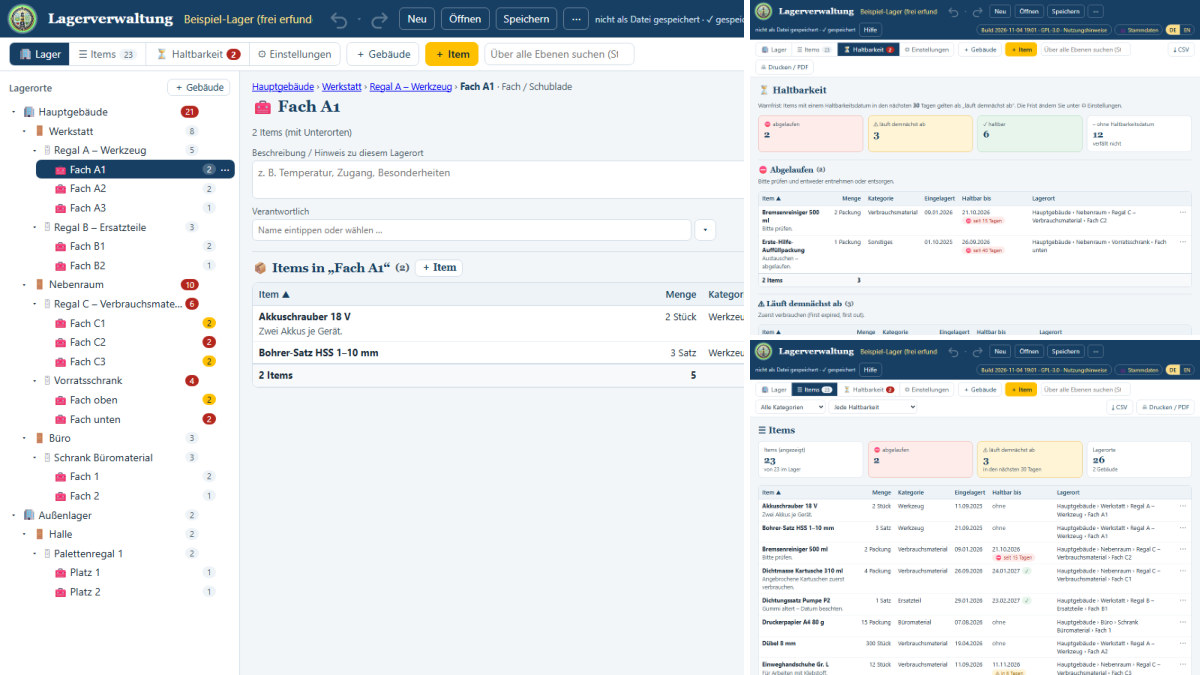
“Have we still got that?” – in a small business this question costs time every single day. Someone walks into the workshop, looks into two shelves, asks a colleague, and in the end orders a new one anyway. A few weeks later the pack turns up at the back of a compartment, past its date. Large inventory systems solve this, but they are overkill for a store room with five shelves and they tie you to an outside provider. That is why my tools now include warehouse management built exactly the way your store actually looks – and if the suite runs on a server, you can use it from your phone while standing in front of the shelf.
At a glance
- Five levels as in real life: buildings › rooms › shelves › compartments and drawers › items. Every level can be created, renamed, moved and deleted.
- Nothing is lost silently: if you delete a storage location that still holds something, the tool asks first – delete the contents too, or assign them to another storage location. You decide, not the program.
- Date stored and best-before date for every item; the best-before date may stay empty, because a screw does not expire.
- Warning list: what has expired, what is expiring soon? You set the period yourself (30 days by default).
- Search across all levels – by item, category, supplier, batch or storage location.
- Withdrawals and additions recorded with date, quantity and reason; the history stays with the item.
- On your own or as a team: as a single HTML file on your computer, or as a module of the MC4Y productivity suite when several people maintain the same store.
- On your phone at the shelf: if the suite runs on a server, you reach the very same store from your phone browser – step by step further down.
- Free and local: free of charge, free software under the GPL, nothing is transmitted.
Five levels, the way your store really looks
Most stock programs impose their own order on you: location numbers, article masters, posting circles. In practice nobody looks for “location 4711”, though – you walk into a room, over to a shelf, and pull out a compartment. That is exactly the order warehouse management uses, and those are the words it uses too:
- Building or house – main building, external store, workshop building.
- Rooms – workshop, store room, office, hall.
- Shelves and cupboards – shelf A, pallet rack 1, tool cupboard.
- Compartments and drawers – compartment A1, drawer 2, bay 3.
- Items – everything you put inside.
Every level may stay empty: if all you have is a workshop with three shelves, you create one building and you are done. And items do not have to hang off a compartment – a pallet may sit directly in the room, a box directly in the shelf.
You can also create compartments several at a time: enter the name, set the number to 6 – and the shelf has “Compartment 1” to “Compartment 6”.
Deleting without losing anything
In tools that manage structures, deleting is the most dangerous spot. One click, and an entire room with three shelves is gone. Warehouse management is therefore deliberately a little awkward here: an empty storage location disappears at once (and the undo arrow at the top brings it back). But if something is still inside, you get a question with two genuine options:
- Move the contents – you choose the storage location that takes them over. Shelves, compartments and items move across in full.
- Delete everything – only if you choose that explicitly.
Both can be undone. That sounds like a detail, but it is the difference between a tool you trust your data to and one you do not.
Two dates per item – and a warning list
Every item carries a date stored – when did it come into the store? – and a best-before date. The second one may stay empty: food, seals, adhesives and first aid supplies expire; screws, toner and ring binders do not. The “Expiry” view sorts your stock accordingly: expired, expiring soon, in date, without a date. The number on the tab and the coloured counters in the tree show you right after opening whether anything needs attention – red for expired, yellow for expiring soon.
The old warehouse principle behind this is “first expired, first out”: use up first what expires first. The warning list tells you what that means right now.
Typing instead of maintaining lists
Unit, category, supplier and responsible person are assignment fields. You simply start typing: if the entry already exists it is used – if it does not, it is created and is available to every other item from then on. The small arrow next to the field opens the searchable list. The lists are maintained (renamed, merged, removed) under “Settings”; if you remove an entry that is still in use, the tool tells you beforehand how many items that affects.
If you also use the master data, the list of responsible people is reconciled with your people – you then maintain name changes in one place only.
Alone at your desk or together on the network
Warehouse management is a single HTML file to begin with. You download it, open it with a double click, and it runs – no installation, no server, no internet. It saves as a *.lager.json file, wherever you want it.
If several people work on the same store, the very same tool is used as a module of the MC4Y productivity suite: the file then sits on your own server, and whoever opens it for editing gets it for themselves; everyone else sees the same state. You do not have to set up an additional web server for this – the suite brings one along when it is installed.
On your phone, while you stand in front of the shelf
Taking stock at a desk is the most common reason why quantities are wrong: you count in the store, memorise the number, and type it in half an hour later. If the suite runs on a server, that detour disappears – you simply take your phone into the store. You do not install a separate app for it; it is the same browser access you use at your desk.
Prerequisite: the suite has to run as a server installation (Windows Server with IIS, Linux or macOS). The single-user installation on a PC deliberately listens on that computer only (127.0.0.1) and cannot be reached from other devices. Your phone also has to be on the same network as the server – a guest Wi-Fi will not do.
Here is how:
- Open the address in your phone browser:
https://<name-of-your-server>/– the same name you use at your desk. The installer states this address at the end and also leaves it in a short guide. If the server name is not found on the Wi-Fi, your IT people can give you the full name; the IP address is the poorer choice, because the certificate is issued for the name. - Handle the certificate warning properly. If the suite was given its own self-issued certificate, every browser warns you on the first visit. Do not just tap it away: compare the fingerprint shown with the one from the installation – it is in the installation log and in the file
mc4y-suite.cer. If they match, store the certificate on the phone as trusted (in larger organisations IT distributes it through device management). More comfortable still is a certificate your devices trust anyway – then this step disappears entirely. - Sign in with your user name and password. The convenient sign-in via the Windows account only exists on the PCs in the domain.
- Tap 🧰 Toolbox and look for 📦 Warehouse management there. Two ways in are offered: “Open …” for an existing store, “New” for your first one.
- Pick the store file from the storage area. It is the same file your colleague is working on at the desk – with its size, the time it was changed, and a note about who currently has it open.
- Work as you would on the big screen: the tree with buildings, rooms and shelves, the items, the warning list and the settings are all there. The tab strip wraps on a narrow screen and tables scroll inside their own frame – you never have to push the page itself sideways.
- Tap Save: “Save as – storage on the server” opens. Choose the folder and confirm with “Save”. From the second time onwards saving goes into the same file without asking, and everyone else sees your state.
- Optional – keep it like an app: choose “Add to home screen” in the browser menu. The suite then starts in its own window without an address bar and with its own icon. It still remains exactly what it is: your server, your data.
And when you are out and about? Do not put the suite on the open internet just so that your phone can reach it from outside. The right way is a VPN into your company network – the same eight steps then apply, and your stock data stays behind your own door.
Your data stays with you
The tool transmits nothing. What you enter stays on your device, or on your own server. As soon as you change something, the browser also keeps the latest state so that nothing is lost after a crash – merely opening the tool stores nothing.
Warehouse management is free of charge and available as free software under the GPL: open warehouse management. If you would also like to put the processes, responsibilities and IT systems in your company in order, I am happy to support you with IT-supported organisational consulting – get in touch for a free initial consultation.
Thinking further
You can find more on this topic under resources and downloads – or talk to me directly in a free initial consultation.
Comments
Comments are published immediately with your name. Only the name, title, comment text and time are stored – see the privacy policy.
Loading comments …