
This article was created with the AI assistant Claude and published by Peter Hoenig.
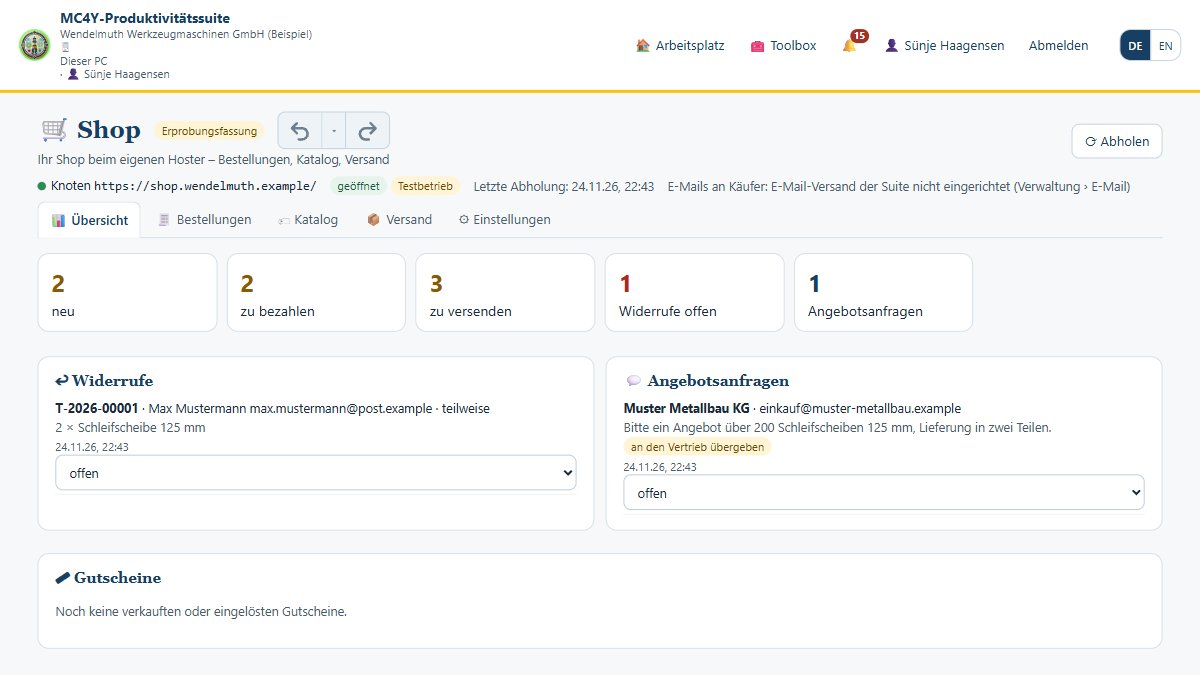
Small businesses that want to sell a few spare parts, consumables, vouchers or training places online face an awkward choice: a large shop platform with monthly fees and data held by third parties – or a home-made shop that knows nothing about stock and accounting. The MC4Y Productivity Suite now offers a third way: a lean shop node at your own web host that works together with the suite's stock management, accounting, customer and sales navigators. To be clear from the start: I do not run a shop and do not offer one. Every operator sets up the shop themselves – with their own host, their own legal texts and their own responsibility.
Trial version: the shop is thoroughly tested, but not yet proven in the daily work of many businesses – please try it in test mode first. Overview, setup in brief and frequently asked questions are on the page Shop for the MC4Y Suite.
How do shop and suite work together?
The shop node is deliberately small: it shows the catalogue, basket, checkout, customer account and legal texts – and has no administration login. It is configured exclusively from the suite, signed with the suite's key. The suite collects orders, payment notifications, withdrawals and quote requests every five minutes (or at the push of a button). If the computer running the suite is switched off, the shop keeps running; orders wait in encrypted form until the suite collects them.
How does an article get into the shop?
In stock management you tick “🏷 Sales product” in the properties panel. Behind it is an article – if the same article lies in three places, its price still exists only once. You enter net or gross; the other value is calculated with the tax rate, and the one you entered “leads”. A shelf price of €9.99 thus stays exactly €9.99. The new “🏷 Sales” view shows stock, reservations, available quantity and margin and provides a price list as CSV. Texts, images and categories are maintained in the suite's “Shop” module; “Publish” sends them to the node.
Who writes the invoice?
Only accounting – so there is one single place for invoice numbers, mandatory details and e-invoices. Every order appears there as an invoice request; one click (also for all ready orders at once) turns it into an invoice with gross prices. For deliveries to consumers in other EU countries, accounting uses the tax rate of the country of destination and produces the report for the OSS return; it warns at 80 % and 100 % of the €10,000 threshold. The bank reconciliation recognises transfers with the order number in the reference. No tax advice: please check the country table and all tax rules with your tax adviser.
Shipping as a task
Whoever packs does not need to know the shop: for every order that is to be shipped, the suite creates a task in the “Tasks” module – with the responsible person, due date, the items to tick off, the storage locations and a link to the delivery note and packing list. Once the task is ticked off, the order counts as shipped: the suite books the stock withdrawal, reports the status to the shop and sends the buyer the shipping e-mail. Ticked off by mistake? Undo reverses the shipping including the stock booking. Buyer details are deliberately not in the task – they stay encrypted in the shop. Services remain “by arrangement”: you enter the appointment in the calendar yourself.
What about law and data protection?
The shop provides the technical places – legal notice, privacy policy, terms and conditions, withdrawal instructions with model form, a “withdraw from contract” function, the “order with obligation to pay” button, base prices, product safety details (GPSR). The operator enters the content; the package only contains outlines to fill in and is no legal advice. Without a customer account the shop sets no cookies (after logging in to a customer account, one technically necessary session cookie); it loads no third-party fonts or scripts and reports nothing to me.
How does the shop get onto the website?
In the FreeHTML or HTML-PY editor you switch on “Use shop”: a “Shop” menu item appears, the address is preset as the /shop/ subfolder of your website. If you like, a “Products” block shows selected articles with image and price on any page. Switching it off is enough, and the menu item is gone with the next upload.
Frequently asked questions
Does MY COACHING FOR YOU run the shop?
No. I provide the source code under GPL-3.0-or-later, like the rest of the suite. Whoever sets up the shop is its operator and controller.Do I need my own server?
No. The shop node runs at a common web host with PHP 8.1 or newer and SQLite. The suite can stay on a computer in the office.Can I try the shop first?
Yes. In test mode the shop shows a banner, is blocked for search engines and accepts no real payments. Afterwards the “Remove” assistant deletes it completely again.Which payment providers are there?
Stripe, Mollie and PayPal – card payments (Visa, Mastercard) run via these providers, never via the shop itself. In this version only while the shop is in test mode, with test accounts; in live operation, payment in advance, invoice for approved customer accounts and payment on collection remain.When do search engines find the shop?
Only once it is open and both test mode and “Keep search engines away” are switched off – after setup both are on. If the shop lives in the/shop/ subfolder, the FreeHTML or HTML-PY editor lists its sitemap in your website's robots.txt.Does the warehouse have to work in the Shop module?
No. The shipping task in the Tasks module is enough; ticking it off means shipped. Every person responsible for the task (for team tasks everyone with access to Tasks) may report it, even without a right in the shop; the order history shows who reported it.When does the inventory book?
The inventory books goods when they leave the shelf: for collection as soon as the binding order arrives (the goods are set aside); for shipping when they are packed and shipped. Until then, goods to be shipped are reserved. If someone does not collect, cancel with “Not collected” – the goods go back into stock.Thinking further
You can find more on this topic under resources and downloads – or talk to me directly in a free initial consultation.
Comments
Comments are published immediately with your name. Only the name, title, comment text and time are stored – see the privacy policy.
Loading comments …