
This article was created with the AI assistant Claude and published by Peter Hoenig.
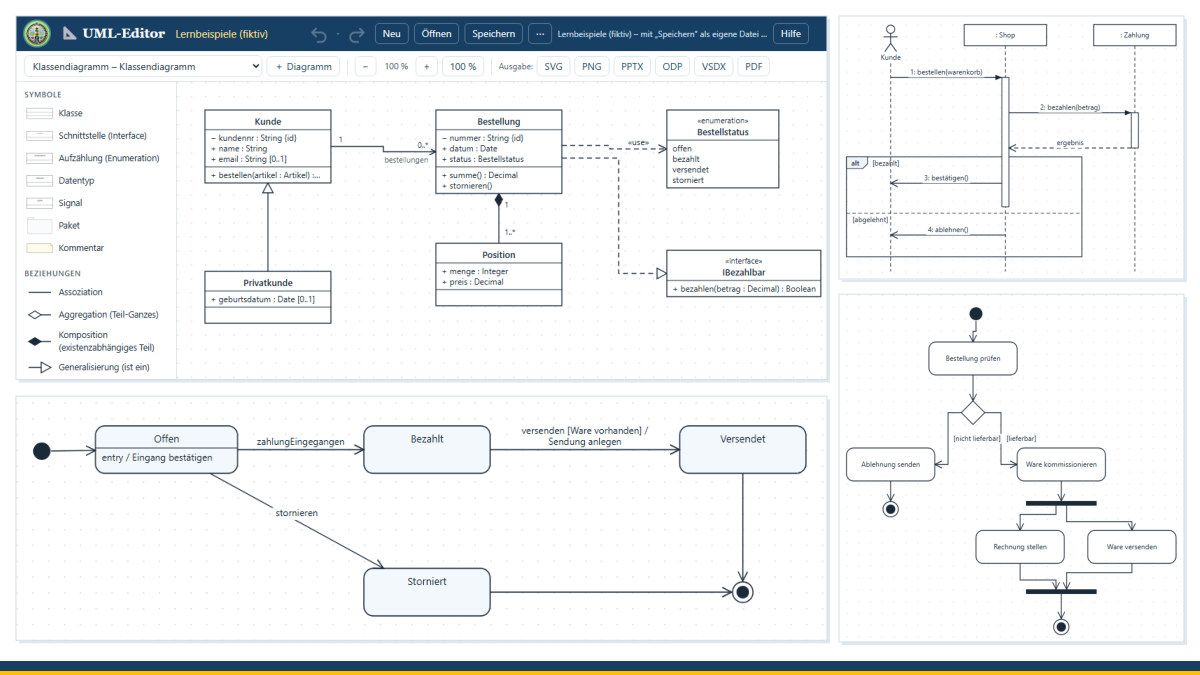
Anyone who introduces or adapts software, or has it developed, can hardly avoid UML. The Unified Modeling Language is the widely used visual language that allows business departments, IT and service providers to talk about the same things: What data is there and how is it connected? Who uses the system, and for what? In what order do the steps take place? Good UML tools, however, are often expensive, cumbersome to install or only available on subscription. That is why my UML editor is now available as a stand-alone tool in the browser – until now, it was only part of my 8EM Modeller.
At a glance
- All 14 diagram types of UML 2.5.1 – from class and component diagrams through use case, activity and state machine diagrams to sequence and timing diagrams.
- A palette for each diagram type: only the symbols and relationships that belong in that diagram type are offered.
- Drawing as in a modelling tool: place symbols, drag them, connect them, label them directly in the diagram and resize them.
- Checks based on the rules of the specification: pointers to typical mistakes, such as circular inheritance or a state that is never reached.
- Learning examples: an entirely fictitious example for each diagram type to help you get to know the notation.
- Output: PowerPoint, LibreOffice Impress, Visio, PDF and SVG – as editable shapes –, plus PNG as an image.
- One project, many diagrams: everything in one file, and the diagrams can be reordered and copied.
- Free and local: free of charge, free software, no installation; your data stays on your device.
The 14 diagram types
UML distinguishes three groups. Structure diagrams show what a system consists of: class, object, package, component, composite structure, deployment and profile diagrams. Behaviour diagrams show what a system does: use case, activity and state machine diagrams. Interaction diagrams show how the participants work together: sequence, communication, timing and interaction overview diagrams.
In the everyday work of small and medium-sized enterprises, four of them are usually in demand: the use case diagram, to clarify with the business department who wants to do what with a system; the activity diagram for processes with branches and parallel steps; the class diagram for the business data and its relationships; and the sequence diagram when the question is which messages pass back and forth between systems. The others are there whenever you need them.
How to draw
On the left, you choose a symbol and place it on the canvas with a click; you type its name straight away. To connect two symbols, drag from the yellow handle of one to the target – the editor suggests the appropriate type of relationship, which you can change on the right. For classes, you write attributes and operations directly into the box, one entry per line. Lines can have labels, multiplicities and roles at both ends, stereotypes and, if you wish, bend points to route them around other symbols. Packages, nodes, system boundaries and composite states take their contents with them when you move them.
In the sequence diagram, a message is created at the height at which you release the mouse button; you can then move it up or down. Execution specifications (activation bars), combined fragments such as “alt” or “loop” and the destruction of a lifeline are also supported. You can undo every step with the large arrows at the top; the history shows what was changed most recently.
Checking instead of guessing
When nothing is selected, the editor checks the diagram shown against the rules of the specification: Is there circular inheritance? Does a class realise something that is not an interface? Is a state never reached? Is the condition missing at a decision? Does a use case have no actor? Is a message still sent to a lifeline after it has been destroyed? Clicking a note highlights the symbols concerned. The notes are suggestions, not error messages – not every deviation is wrong, but each one is worth a question.
Learning examples and output
If you are new to UML, open the learning examples: a project with an entirely fictitious example for each of the 14 diagram types. You can also create a new diagram with a small example right away and then rework it.
You can export finished diagrams to PowerPoint, LibreOffice Impress, Visio, PDF, SVG or PNG. Except for PNG, this does not produce images but shapes that you can continue to edit in the target program – handy for presentations, requirements specifications and discussions with service providers.
Stand-alone – and connected with the 8EM Modeller
A project file contains any number of diagrams. It is stored wherever you save it; in addition, the browser keeps an interim copy in case the window ever closes unexpectedly. If you work with my 8EM Modeller, you already know the editor: there, UML diagrams are attached to IT systems, platforms and components and refer to elements of the enterprise model. The stand-alone UML editor can take over such diagrams from a model file; in the process, the references become plain names, and the model itself remains unchanged.
Connection with the 8-Level Model
In my 8-Level Model, IT sits on the lowest level – not because it is unimportant, but because it is meant to serve the levels above it: the goals, the capabilities, the processes and, above all, the people. UML diagrams help to build this bridge properly: a use case shows which task a person wants to accomplish with the system; a class diagram shows which business terms lie behind it. A diagram never replaces the conversation – it only makes visible what is being talked about.
The UML editor follows the notation of the specification, but it is not a certified tool and does not replace an expert review. Please back up your project files regularly.
Conclusion
The UML editor brings all 14 diagram types of UML 2.5.1 to the browser – with a palette for each diagram type, checks, learning examples and output to the common office formats, without installation and without a subscription. It is free of charge and available as free software under the GPL: Open the UML editor. If you would like to set up IT projects so that business departments, IT and service providers speak the same language, I will be glad to support you through IT-supported organisational consulting. Talk to me in a free initial consultation.
Sources: Object Management Group (OMG): OMG Unified Modeling Language (OMG UML), Version 2.5.1, December 2017 (formal/17-12-05). – Explanations and examples are in my own words; all examples are entirely fictitious. – UML® and Unified Modeling Language™ are trademarks of the Object Management Group, Inc.; PowerPoint and Visio are trademarks of Microsoft Corporation. The names are used for descriptive purposes only.
Thinking further
You can find more on this topic under resources and downloads – or talk to me directly in a free initial consultation.
Comments
Comments are published immediately with your name. Only the name, title, comment text and time are stored – see the privacy policy.
Loading comments …