
This article was created with the AI assistant Claude and published by Peter Hoenig.
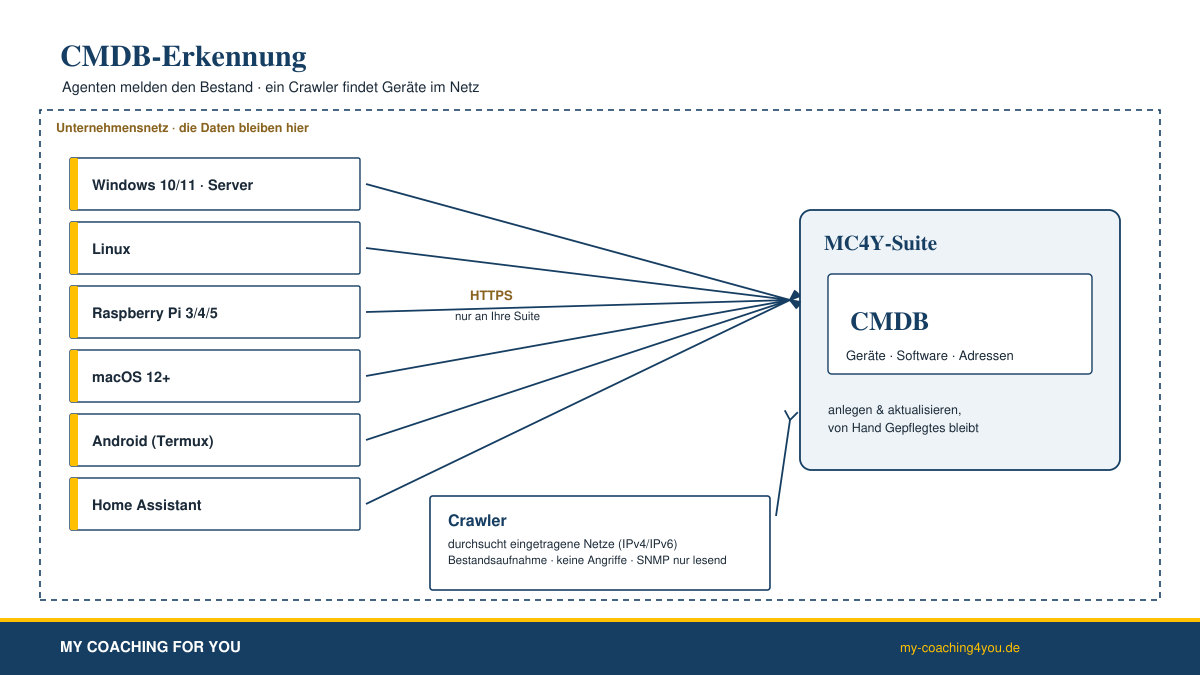
A configuration database is only as good as the care it receives. For the CMDB in the MC4Y Suite you can import existing lists – from Excel, Active Directory, the DHCP server or Wireshark. It gets even easier when the inventory keeps itself up to date. For that there are two small helpers: an agent that runs on a device and reports its inventory, and a crawler that scans a network for reachable devices. Both only take stock.
One thing up front, because it matters to me: you – or the people responsible for IT in your organisation – set up agents and crawler in your own network and under your own responsibility. The programs send only to your own suite. The data stays in your network. Neither I nor any outside server ever gets to see any of it.
At a glance
- An agent per device: reports a computer's inventory to your suite. A crawler per network: finds reachable devices in the networks you enter.
- Many systems: agents for Windows 10/11 and Windows Server, Linux, Raspberry Pi 3/4/5 (Raspberry Pi OS and Ubuntu for the Pi), macOS from version 12, Android phones and tablets (via Termux) and Home Assistant on a Raspberry Pi or Windows. The crawler runs on Windows, Linux and macOS.
- What is reported: system, manufacturer, model and serial number, memory, disks and partitions with size and free space, operating system and version, installed software, services, shares, network cards and attached devices. No user names, logins or file contents.
- When: on request from the suite or at an interval you choose.
- In your network, under your responsibility: configurable per organisation – your IT staff set the suite address, the setup key, the networks and the schedule. No cloud, no telemetry, no report back to me, no query to outside servers.
- Set up in plain sight: an installer registers a service or scheduled task, an uninstaller removes it, and settings and a log sit on the device in plain text.
- Gentle: the crawler attacks nothing, attempts no login and queries SNMP read-only – and only if you store a credential.
- Encrypted and unique: every agent has its own identity and sends only over HTTPS to your suite.
The agent – one device's inventory
An agent runs on a single device and reports its inventory: the system itself (manufacturer, model, serial number), the memory, the disks and their partitions with size and free space, the operating system and version, the installed software, running services, shares, network cards and attached devices. It sends this to the suite, which turns it into a component in the CMDB or updates an existing one. Fields you maintain by hand are left untouched – the agent only adds.
The agent comes as a small program for Windows (PowerShell), as a Python program for Linux, Raspberry Pi and macOS, for Android through the Termux app and as an integration for Home Assistant. On Home Assistant it additionally reports the names, manufacturers and models of the managed smart-home devices – but no states or readings.
The crawler – reachable devices on the network
The crawler runs on a single computer and scans the networks you enter in the suite – as an IPv4 or IPv6 network with its mask. It determines which devices are reachable, reads the name and MAC address from the operating system's neighbour table, derives the manufacturer from the MAC address (from a list held in the suite – without any lookup on the internet) and roughly guesses the category from the open services, a printer for instance. Nothing more: the crawler reports an inventory, it attacks nothing and attempts no login. It queries SNMP read-only and only with the credential (community) you store. On request it runs to a schedule, otherwise at the press of a button.
In your network, under your responsibility
Agents and crawler are meant for the IT staff of an organisation to install and operate in their network. They set everything organisation-specific themselves: the address of their own suite, the setup key, the networks to scan, the schedule and – if used – the SNMP credential. If someone downloads the package from my website, no address is preset; you enter the address of your own suite during setup.
That keeps the data where it belongs: agents and crawler send only to the one suite entered during setup. There is no telemetry, no "check for updates" call to my website and no connection to any other outside server. Whoever downloads and installs the programs runs them under their own responsibility – I receive nothing from other people's installations.
Setup – visible and with a key
Everything is set up in plain sight; nothing hides. In the suite you create a setup key and a small setup file under Administration › CMDB › Discovery, enter the networks and the schedule, download the matching package and run the installer. The installer registers a service (Linux/macOS) or a scheduled task (Windows) and places settings and a log in plain text. On first start the agent enrols with the key and receives its own identity; the key itself is stored by the suite only as a check value. In the same view you see which agents are connected, when they last reported and what they found – and you can request a report at once or remove an agent again.
The easiest way for a single computer is the suite’s graphical installer (the package you set the suite up with): on Windows with no terminal at all, by double-clicking Installer-starten.bat. There you choose the tile “Report this device to the CMDB (agent/crawler)”, enter the address and setup key – or place the setup file next to it, then both are already filled in – and tick the boxes for agent and/or crawler.
Several devices at once: “Connect devices”
Instead of setting up each computer individually, the IT team can roll out the agent – or the crawler – to several devices at once, from the suite under CMDB › Discovery › “Connect devices”, from a Windows workstation: Windows computers over WinRM, Linux, Raspberry Pi and macOS devices over SSH. You download a small deploy helper, start it, choose the operating system, enter the devices (one per line) and the account (for Windows an administrator account with password, for SSH the user and an SSH key), check the connection and roll out – with progress per device. Any password you enter stays only in memory and is not stored.
Home Assistant is deliberately not set up remotely: if you choose it as the operating system, the view shows a step-by-step guide and the download instead of the rollout form. You then set up the integration once on the device itself, as described below.
Virus scanners and firewalls
A program that reads a computer's installed software and reports it over the network behaves rather like spyware – even though it is not. Some virus scanners therefore flag such an agent as suspicious as a precaution, or move it to quarantine. What the IT staff should bear in mind:
- Add the agent's folder, service or task to the virus scanner as an exception. Check the files beforehand and download them only from your own suite or the official source.
- If the agent does not appear in the discovery view, it is worth looking in the virus scanner's quarantine. You can tell a file is there from a message by the scanner and from the file being missing at the expected location.
- A remnant of a file that has already been locked can sometimes only be removed after a restart. While developing the Windows agent I therefore split it into two separate parts – one for the network and one for reading the inventory – so that no single program does both at once.
- If that feels too awkward, use the Python agent on Windows instead of the PowerShell one; it does the same job.
For the firewall: the agents need only outbound HTTPS (port 443) to your suite – no port needs to be opened on the devices. The crawler needs outbound ping (ICMP), the few TCP ports it checks and, where used, SNMP (UDP 161) into the networks you entered – and mind IPv6 here too. On the server where the suite runs, only inbound HTTPS is required. If ping is blocked in the network, some devices stay invisible to the crawler. And because a network-wide scan can resemble an attack, network protection systems (IDS/IPS) may flag the crawler as suspicious: agree the crawler with those responsible for the network beforehand, place the schedule outside working hours where possible and let it run throttled.
The individual systems
The packages are available – as a trial version – under Experimental – to try out; in your own suite the download is right in the discovery view. Every installer understands German and English (on Windows -Sprache de or -Sprache en, otherwise --lang de or --lang en).
- Windows 10/11 and Windows Server: the agent as a PowerShell program, set up as a scheduled task. The crawler likewise. The easiest way is a double-click on
Agent-installieren.batorCrawler-installieren.batin the package's “windows” folder: if the setup filemc4y-erkennung.jsonis next to it, you need not type anything; otherwise you give the suite address and the key at setup. - Linux and Raspberry Pi 3/4/5: the Python agent, set up as a systemd service – for example
sudo sh installieren.sh --adresse https://suite.company.example/ --schluessel <key>. The common Pi systems (Raspberry Pi OS 32/64-bit, Ubuntu for the Pi) are covered. - macOS from version 12: the Python agent, set up as a launchd service, with
bash installieren-macos.command --adresse …. - Android phones and tablets: through the Termux app (a Linux-like window on Android) with
bash installieren-termux.sh --adresse …. This avoids a separate background app in the Play Store; reporting runs on Termux's own schedule. - Home Assistant (Raspberry Pi or Windows): as a dedicated integration, "MC4Y CMDB". You enter the suite address and key in the Home Assistant interface – or place the setup file
mc4y-erkennung.jsonin the integration's folder, and both are already filled in. Amelden_jetztservice reports at the press of a button.
What the agents do not do
The boundary matters to me: the agents provide only the device's inventory data – no user names, no logins, no file contents, no keystrokes, nothing from the browser. The programs are open to read, obfuscate nothing and download nothing. They start on their own only through the service or task that the visible installer sets up. What they collect and where they send it is written in their settings file, which you can inspect at any time.
Where this leads
Discovery is part of the CMDB in the MC4Y productivity suite. What lands there automatically can be linked with the ITSM tool to incidents, problems and changes, and placed into the organisation's 8-level model with the 8EM modeller. I have tried agents and crawler with simulated devices and networks; I welcome feedback from real networks.
Would you like to put your IT landscape in order and keep it up to date automatically? Get in touch – more on this under IT-supported organisational consulting.
Trademark note: Windows, Windows Server and Active Directory are trademarks of Microsoft Corporation; macOS is a trademark of Apple Inc.; Linux is a registered trademark of Linus Torvalds; Raspberry Pi is a trademark of Raspberry Pi Ltd; Android and Google Play are trademarks of Google LLC; Ubuntu is a trademark of Canonical Ltd; Home Assistant is a project of the Open Home Foundation; Termux and Wireshark are trademarks of their respective owners. The names are used descriptively only; there is no connection with the trademark owners.
Thinking further
You can find more on this topic under resources and downloads – or talk to me directly in a free initial consultation.