
This article was created with the AI assistant Claude and published by Peter Hoenig.
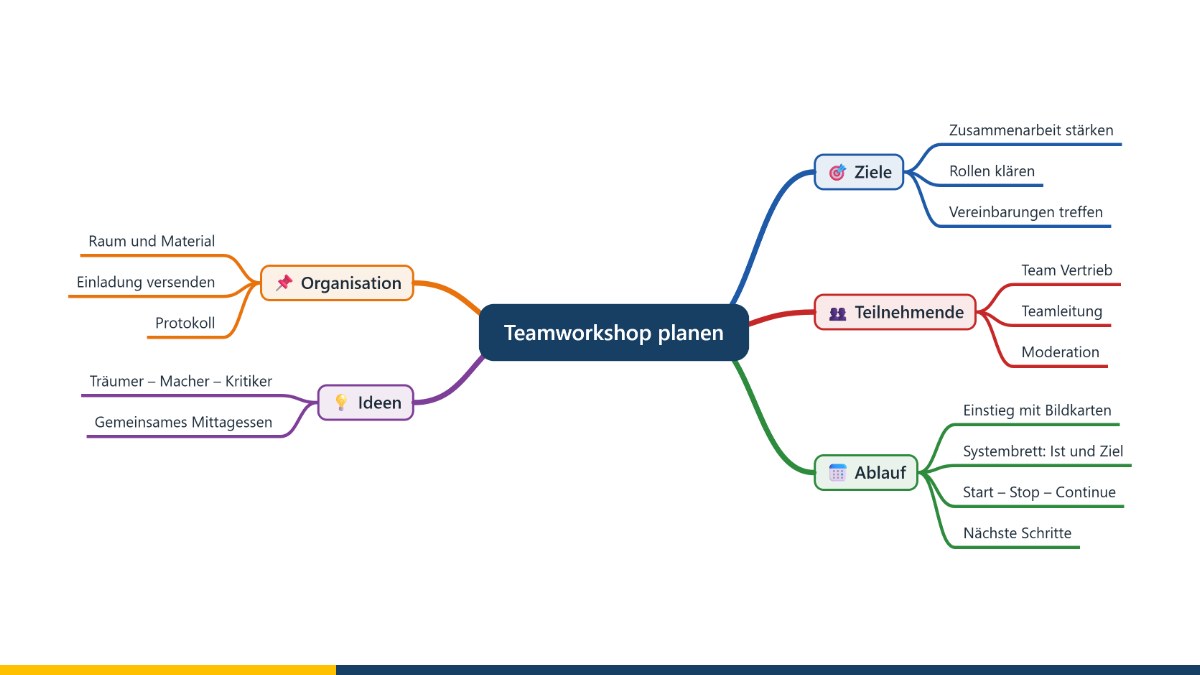
Thoughts rarely run in straight lines. A mind map follows this way of thinking: the topic sits in the centre, and from there main ideas and ever finer sub-points branch out. The result is a map of your thoughts that shows connections and remains open to additions – ideal for collecting ideas, planning projects and texts or preparing conversations.
Aim of the method
A mind map helps you keep the overview and go into depth at the same time. Because it works only with keywords, it encourages you to keep thinking: every branch invites you to add another one. Colours and symbols make groups and priorities visible. In coaching and consulting, I use mind maps to sort out concerns, collect options or break a project down into work packages.
Where the method comes from
Tree-like representations of knowledge are old – scholars in antiquity and the Middle Ages already arranged concepts in branching structures. The mind map in its present form was popularised by the British author Tony Buzan in the 1970s, initially in his book “Use Your Head” (1974) and a BBC television series of the same name. He recommended working with keywords, colours and images to stimulate thinking and make things easier to remember. Since then, mind mapping has become widespread at school, at university and at work.
How to create a mind map
- Write the topic in the centre.
- Add main ideas as branches – with short keywords instead of sentences.
- Extend each main branch with further sub-points.
- Use colours and symbols to mark what belongs together and to highlight what is important.
- Tidy up the mind map: move, combine or regroup branches.
- Use the result – as an outline, a task list or the basis for a text.
Working with the mind map tool
- Branches: with colours that are passed on to sub-branches, and with symbols. Several branches can be moved, copied, and promoted or demoted together. Branches can be placed freely on the canvas; to attach a branch elsewhere, simply drag its connecting line to the new parent branch.
- Cross-links: links between any branches, in one or both directions, with a label and a freely shaped curve. In Word, OpenDocument and PDF documents as well as in presentations, they become clickable links.
- Notes: Each branch has a notes field with headings, lists, tables and images – turning the mind map into a complete document.
- Drawings: shapes, symbols, freehand lines and connectors directly in the note.
- Time span and resources: Branches can be given start and end dates as well as resources – helpful for project planning.
- Export: as a Word document (.docx), OpenDocument (.odt) or PDF, with the branches becoming headings, bullet points or numbered items – if you wish, with the mind map as an image. Also as SVG and PNG.
- Presentation: At the click of a button, the mind map becomes a presentation for PowerPoint or LibreOffice Impress – with a title slide, an overview slide and a contents slide, one slide per branch and, if you wish, the notes as speaker notes.
- Import and exchange: Existing Word, OpenDocument and PDF documents are converted into a mind map based on their headings. Mind maps in MindManager format (.mmap) can be opened and saved in this format again.
- Project folder: If you wish, the tool remembers a folder containing your mind maps and offers them for selection when you open a file. This folder function is only available in Chrome and Edge; in Safari and Firefox you work with single files.
- Keyboard and mouse:
InsorTabcreates a sub-branch,Entera branch on the same level,F2renames,Deldeletes,Spacecollapses and expands,Ctrl+Zundoes. The same commands are in the toolbar (“+ Sub-branch”, “+ Branch”, “Delete”) and on the right mouse button. - Word format per branch: On the right you decide whether a branch appears in the document as a heading, bullet point, numbered item or normal paragraph. “Automatic (by level)” turns the first three levels into headings; “Do not export (with sub-branches)” leaves a branch out.
- Annotations and images on the canvas: “+ Annotation” and “+ Picture” place freely positioned elements in the mind map; they also appear in the image export.
- Cut, copy, paste: branches with their sub-branches via
Ctrl+X,Ctrl+CandCtrl+V; text from Word or lists is pasted as an outline. - Example and backup: “Example” loads the fictitious mind map “Plan a team workshop” to try out. In case of a crash, the browser keeps a backup copy, on this device only – it does not replace saving.
The tool runs entirely in your browser and does not transmit any data. It is free of charge and available as free software under the GPL: open the mind map tool. Find out more about its features on the mind map tool page.
Conclusion
Mind mapping is one of the simplest methods for bringing order to complex topics. Try it out on the mind map tool page. If you would like to structure an undertaking or set up a project, I will be glad to help you with project support. Get in touch for a free initial consultation.
Source: Buzan, T. (1974): Use Your Head. London: BBC Books.
Trademark notice: Product names mentioned, such as MindManager, Microsoft Word and PowerPoint, are trademarks of their respective owners and are used for descriptive purposes only.
Open or download the tool
- Mind map toolOpen Download (889 KB)
Thinking further
You can find more on this topic under resources and downloads – or talk to me directly in a free initial consultation.
Comments
Comments are published immediately with your name. Only the name, title, comment text and time are stored – see the privacy policy.
Loading comments …