
This article was created with the AI assistant Claude and published by Peter Hoenig.
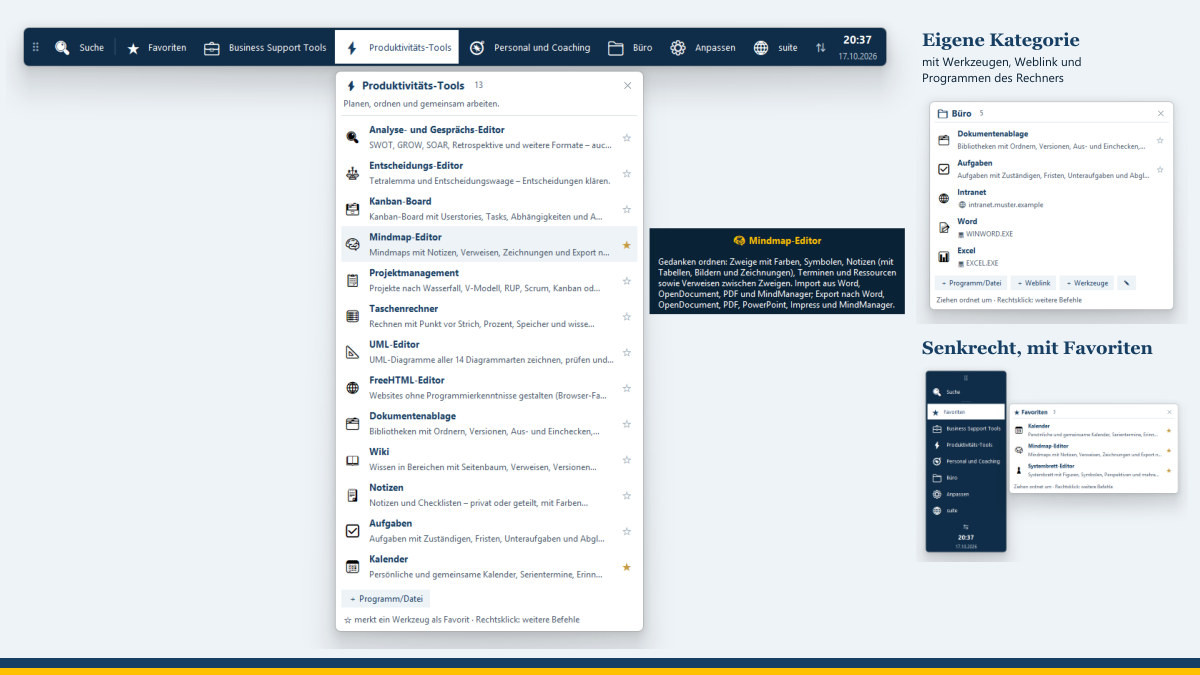
If you work with many tools, you often spend longer looking for the right program than it takes to open it. The MC4Y Taskbar is a small program that floats freely above all windows – even when no browser is open. It brings the tools of my MC4Y Productivity Suite onto your screen with a single click and, if you wish, also holds Word, Excel, web links or your own HTML tools.
At a glance
- Tidy: the bar shows only the categories; one click expands their tools, each with a short description.
- Always within reach: floating freely, horizontal or vertical, and can be moved to any position on the screen.
- No detours: one click opens the tool in a slim window of its own – already logged in.
- Server and your own computer: the bar can be connected to your organisation's server and to the suite on your computer at the same time. The default is the server; if it cannot be reached, the bar switches to your computer.
- To your taste: custom categories, any order you like, hidden categories, web links and programs on your computer.
- Secure: the password is not stored; only your computer knows the programs on your computer.
- German or English: as your operating system is set or as you choose – the tools you open follow the language of the bar.
- A program like any other: in the Start menu (Windows, “MC4Y Taskleiste”), in Launchpad (Mac) or in the applications menu (Linux) as “MC4Y Taskbar”, with start at sign-in if you wish.
- For Windows, macOS and Linux, installed without administrator rights – as free software under the GPL.
How to use the bar
At first, the bar shows only the suite's categories – such as Business Support Tools, Productivity Tools, and Personal and Coaching. Clicking a category expands its tools. If you move the mouse over an entry, the detailed description appears next to it. With the star, you mark a tool as a favourite; the favourites get a category of their own, which you arrange by dragging.
Using the magnifying glass, you search for a tool by name or description; the Enter key opens the first match. The most recently edited documents are listed there too – one click opens them directly in the right tool. The clock at the end of the bar takes you to the calendar, and the cross next to it closes the bar after a brief confirmation – you start it again from the Start menu, Launchpad or the applications menu, or the next time you log in. Using the handle, you can drag the bar to any position on the screen, including onto a second or third screen; a double-click returns it to its default position, and an arrow icon turns it vertical or horizontal. The bar remembers which screen it is on. If that screen is ever missing – for example on a laptop without its docking station – the bar appears on the main screen, always fully visible. Right-clicking a category or a tool shows further commands, such as “New”, “Open …” or the description.
The tools themselves are browser applications. The bar opens them in a window of their own without an address bar – with Microsoft Edge, Google Chrome, Chromium or Brave – or, if you set it up that way, as a tab in your default browser. You do not need to log in again for this: each time it opens a tool, the bar obtains a key that is valid only once and only for one minute.
The bar speaks German or English. If you have not chosen a language, it follows the language of your operating system; you can switch via “DE | EN” in the search, in the grip's menu or in the settings. A tool you open from the bar appears in the same language – if you have already chosen a language of your own in the browser, that choice takes precedence. The installation scripts of the bar and its messages in the command window follow the language of your system as well; on a computer set to German you see the German texts. On the Mac and on Linux, add --lang en to the installation command to keep them in English.
Server and this computer
Many people work with the suite on the server in the office and with the suite on their own laptop when travelling. The taskbar can therefore be connected to several suites, each with its own login. By default, the tools come from the server. If it cannot be reached, the bar uses the suite on your computer and checks every five minutes whether the server is back – and then switches back automatically.
An icon in the bar shows where the tools are currently coming from: the globe with the name of the server, or the screen for “This PC”. Clicking it lets you switch permanently to one suite, return to “automatic” or connect a further suite. Please note: each suite has its own accounts – the password for the server is different from the one for the suite on your computer, unless your organisation uses login with the company account.
Custom categories and programs on your computer
Under ⚙ Customise you set up the bar in one place: move categories up or down, hide them, show them again or return to the usual order. It is quicker to do this directly in the bar by dragging a category to its new position.
In custom categories you collect whatever belongs together for your work: tools of the suite and web links, for example to the intranet or the customer portal. This setup applies to your account – in the suite's taskbar in the browser as well as in the program, including on your other computers.
The program can also include programs and files on your computer: Word, Excel, PowerPoint, Outlook, LibreOffice, a folder, a document or an HTML tool such as my website editor, which can open in an app window of its own if you wish. To choose from, the bar offers all programs and apps installed on the computer – under Windows just as the Start menu shows them under “All apps”, including apps from the Microsoft Store – with a search field; several can be added to a category at once. These entries deliberately remain only on the computer concerned: the suite does not store them and cannot determine what is started there.
Incidentally, if you do not use the suite (yet), you can also use the bar on its own for programs, files and web links – simply choose “Use without suite” when you start it for the first time.
Installation – step by step
What you need: the address of your suite and your user name with password – the same details as for signing in to the suite in the browser. You also need Python version 3.8 or later with tkinter; Python is the programming language the taskbar is written in. You do not need an administrator password: the taskbar is set up only for your own user account. Allow 5 to 10 minutes.
It is best to download the program from your suite: click your name at the top (page “Your account”) and, in the section “Desktop taskbar and app”, click the download – then your suite's address is already filled in. Without a suite, you will find it here as mc4y-taskleiste.zip.
On Windows 10 and 11
- Open File Explorer (Windows key + E) › “Downloads”, right-click “mc4y-taskleiste” and then click “Properties”. If the bottom says “This file came from another computer …”, tick “Unblock” and click “OK”.
- Right-click “mc4y-taskleiste” › “Extract All…” › “Extract”, then open the folder “MC4Y-Taskleiste”.
- Double-click “installieren-windows”. If a blue window “Windows protected your PC” appears: “More info” › “Run anyway”.
- If the black window asks “Install Python now with winget (for your user account only)? [y/N]”, type
yand press Enter. - The taskbar starts and opens the window “Connect to the MC4Y Productivity Suite”. Enter your user name and password and click “Connect”.
On the Mac
If you installed the suite itself on the Mac, its installation has already offered the taskbar – then it is already there. Otherwise:
- Install Python once: on python.org, download the “macOS 64-bit universal2 installer”, double-click the .pkg file in the “Downloads” folder and follow the steps (“Continue”, “Agree”, “Install”).
- In Finder, double-click “mc4y-taskleiste.zip”, unless Safari has already unpacked the file. You now see the folder “MC4Y-Taskleiste”.
- Open Terminal (cmd + Space, type “Terminal”, press Return), type
cdand a space, drag the folder “MC4Y-Taskleiste” into the Terminal window and press Return. - Enter
bash installieren-macos.command --lang enand press Return. - At “Start the taskbar automatically when you sign in to your Mac? [Y/n]”, press Return (= yes) – or type
n. - In the window “Connect to the MC4Y Productivity Suite”, enter your user name and password and click “Connect”. If macOS asks about the Keychain, choose “Always Allow”. You can close Terminal afterwards – the bar keeps running.
Afterwards you find the taskbar like any other Mac program: in Launchpad (on macOS 26 it is called “Apps”) or via Spotlight (cmd + Space, type “MC4Y”) as “MC4Y Taskbar”, with an icon of its own. Drag it into the Dock – then one click is enough. Please do not start the files of the package by double-clicking them in Finder – macOS blocks this for files from the internet; via Terminal with bash … this problem does not arise.
On Linux: install Python with tkinter from the distribution's packages (such as python3-tk), open a terminal in the folder “MC4Y-Taskleiste” and enter sh installieren-linux.sh --lang en. Afterwards “MC4Y Taskbar” is in the applications menu.
How to check that it worked: click a category in the bar and then a tool – it opens in a window of its own and you are already signed in. After you next log in to the computer, the bar is back. If signing in does not work (“User name or password incorrect”), check that you are using the account of exactly this suite – the same one you use to sign in in the browser at the address you entered.
Removing: on Windows, double-click “deinstallieren-windows” in the folder “MC4Y-Taskleiste”; on the Mac, in Terminal, enter bash ~/"Library/Application Support/MC4Y/Taskleiste/deinstallieren-macos.command" --lang en. The detailed guide is in the package as README.txt.
Start at login: on Windows it is set up by the installation script alone; you can switch it on and off, as with any other program, in Windows under Settings › Apps › Startup. On the Mac and on Linux the installation script asks about it; you can change it at any time in the bar under 🔍 › “Settings” › “Start when signing in to the computer” – on a Mac from macOS 13 also under System Settings › General › Login Items. The program itself changes nothing about this in the background.
Do not confuse: if you would rather not have an additional program, use the taskbar in the browser – in the suite under Your account › Appearance – or install the suite in Edge or Chrome as an app with its own window and icon. The taskbar in the browser, however, belongs to the browser window and closes with it; the desktop taskbar stays open until you quit it.
Security and data protection
When it logs in for the first time, the bar receives a device key from the suite; it does not remember your password. It stores the key protected by your operating system – under Windows encrypted for your user account, on the Mac in the Keychain and under Linux in the keyring (if there is none under Linux, in a file that only you can read). You can see which devices are connected in the suite under “Your account” and can disconnect them there at any time; a device that has not been used for a long time has to log in again.
The program connects only to the suites whose address you enter and sends nothing to third parties or to me. In your user folder it remembers the addresses, your login names, the position and appearance of the bar and the programs you have added.
Tested – and where not yet
I use the taskbar myself under Windows 11, connected to a server and to the suite on my computer. On the Mac, the installation of the suite has been tested on a real device; the taskbar program with its icon and start at login is new there, and Linux has not yet been tested on real devices – I would particularly welcome feedback. I describe how to set up the suite itself in the post Installing the MC4Y Suite.
Questions or wishes regarding the taskbar? Write to me.
Sources and notes
- Python: python.org
- Licence: GNU General Public License, version 3 or later.
- Microsoft Edge, Microsoft Store, Word, Excel, PowerPoint, Outlook and Windows are trademarks of Microsoft Corporation, Google Chrome is a trademark of Google LLC, Brave is a trademark of Brave Software, Inc., macOS is a trademark of Apple Inc., Linux is a registered trademark of Linus Torvalds; Python is a trademark of the Python Software Foundation. The names are used for descriptive purposes only.
Thinking further
You can find more on this topic under resources and downloads – or talk to me directly in a free initial consultation.
Comments
Comments are published immediately with your name. Only the name, title, comment text and time are stored – see the privacy policy.
Loading comments …